The Basics
Roon's Export feature copies files from your server to other locations and writes Roon's metadata tags onto the copies.
Common reasons for using Export include:
- Copying files to a new storage location on your computer (if you're looking to use Roon on the go, check out Roon ARC)
- To make a copy of your library tagged with Roon metadata
- To export a spreadsheet for cataloging your library
- Export to a CSV to import into Soundiiz
Please, note that, at the moment, the "Export" feature is only available on computers and laptops and not tablets and smartphones. There is currently no option to add/remove Export options.
How To Export Files
You can export from nearly every screen in Roon. Export albums, tracks, and more by clicking the context menu:
You can also export tracks the same way:
Finally, you can export multiple items at once by
selecting them and choosing Export from the Selection Bar.
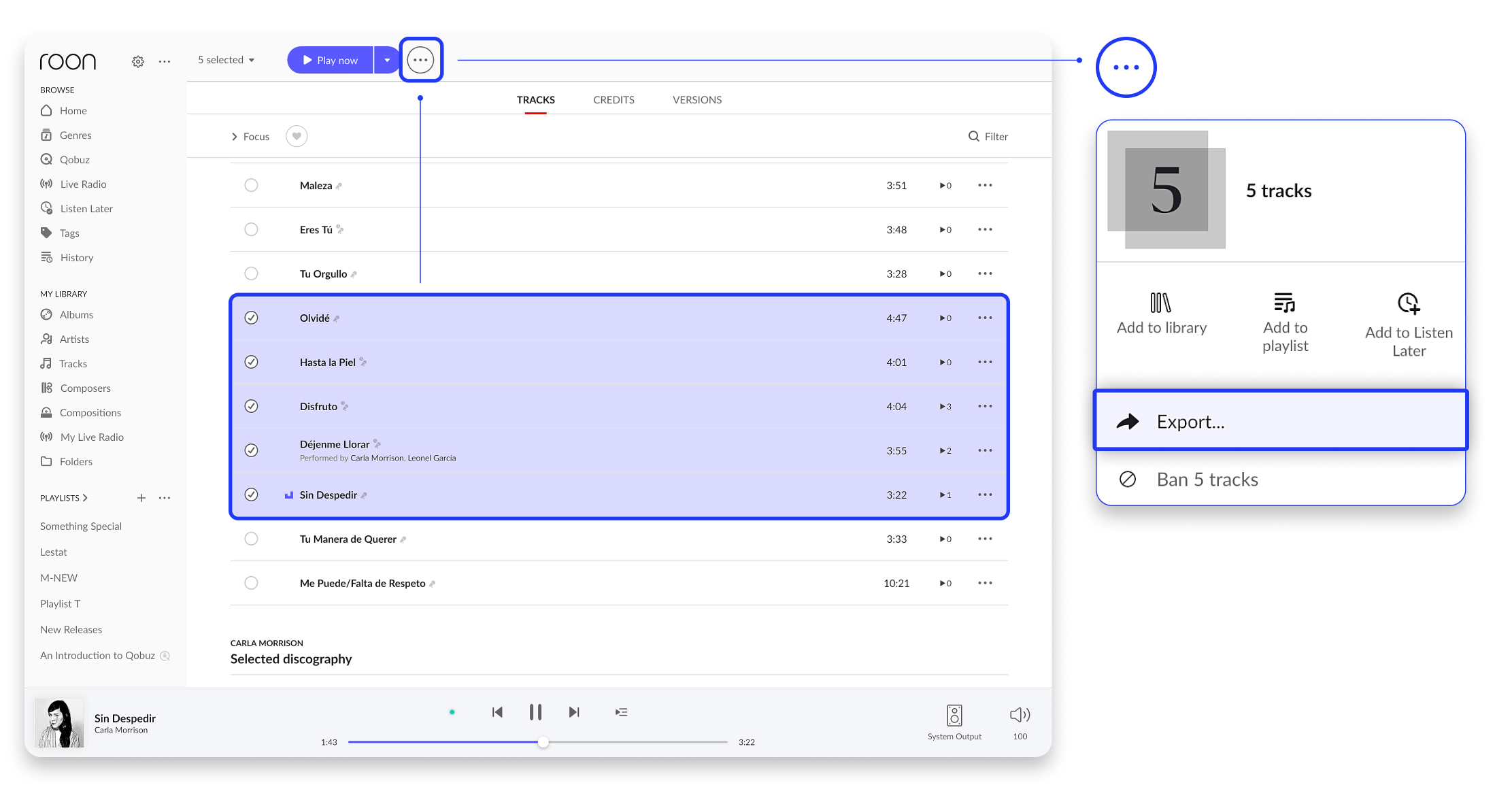 Select your tracks by long-pressing or right clicking on them
Folder Export
If you're exporting local files (music that you have downloaded or ripped yourself), you can export the files themselves to a folder of your choice. If what you're exporting is a playlist, it'll also create an M3U playlist file.
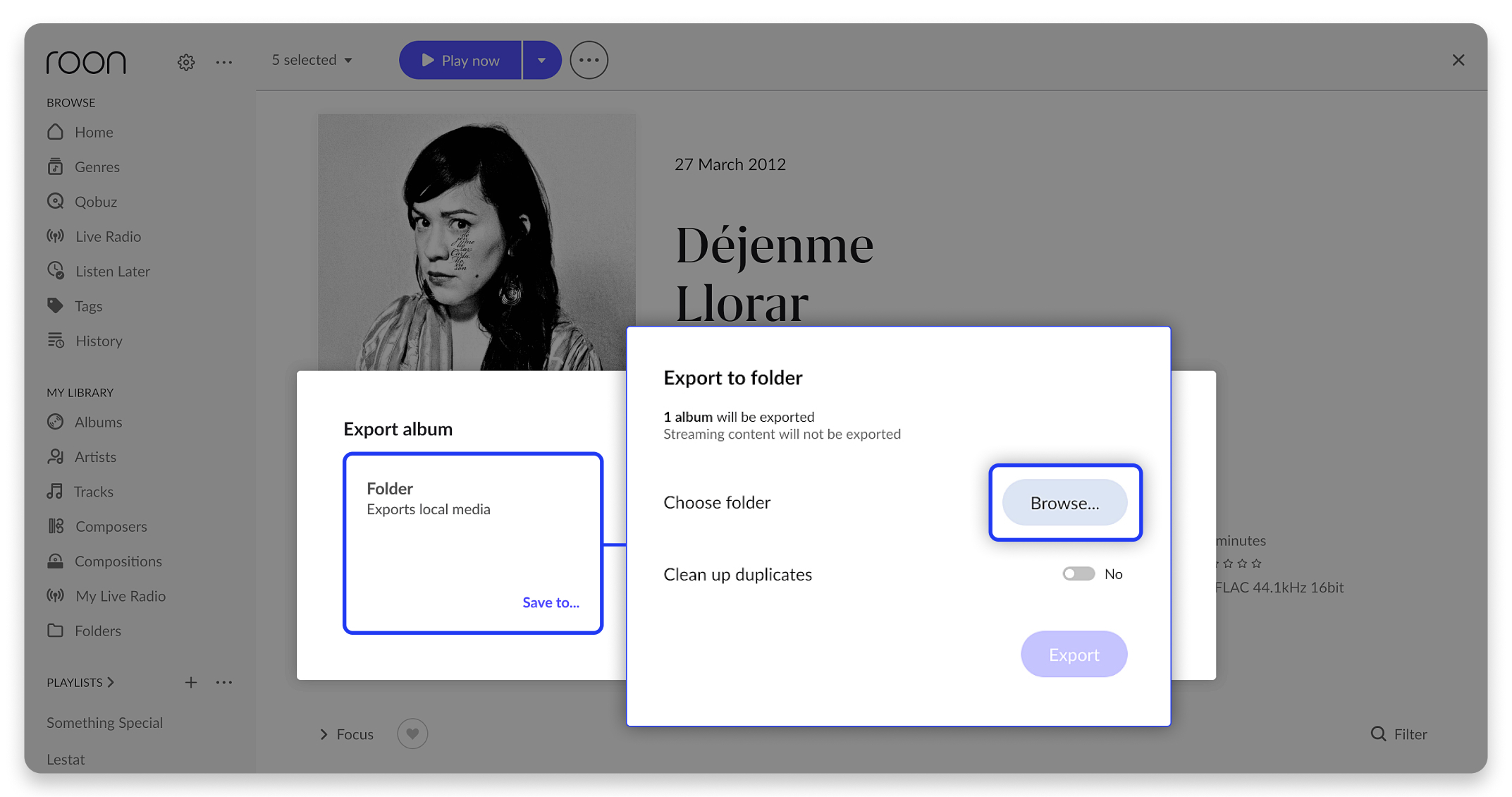
Roon exports your music files into your chosen destination folder, organized into artist and album subfolders. It also saves the M3U file in a Playlists subfolder it creates inside that same destination folder.
This export creates a separate copy of the playlist and its music files. The M3U file uses the copied files rather than the files in your existing Roon library. This helps make sure the playlist works outside of Roon. File locations can vary depending on your network and storage setup. Because of this, Roon can't guarantee that an M3U file using your original file locations will work on another device or app. Including copies of the music files avoids that problem.
Clean up duplicates
If you export to a folder you've used before, Roon can remove the older copies it exported earlier. To do this, please turn on Clean up duplicates in the export options.
Here's an example. You export an album, change its title in Roon, and export again to the same folder. Roon saves the music under the new album name. With this option on, it also removes the old copy, so you keep one version. With it off, both folders stay.
Roon only removes files it exported itself. If the old album folder is empty afterward, Roon removes it too. If it still holds other files, Roon leaves the folder and those files alone.
This setting only applies to files from earlier exports. If the same track appears twice in a playlist, Folder Export copies it once either way.
Soundiiz Export
We've worked closely with our friends at
Soundiiz to create an export method that works well with their service. Soundiiz is great for syncing playlists, favorites, or library content to TIDAL, Qobuz, or any other streaming service. The CSV generated here works great with Soundiiz and makes it easy to migrate your content to any other service!
Export to Soundiiz is one-way. Roon generates a CSV snapshot of your playlist or library at the time you export it. Changes you make later in Soundiiz or on the destination streaming service don't sync back to Roon.
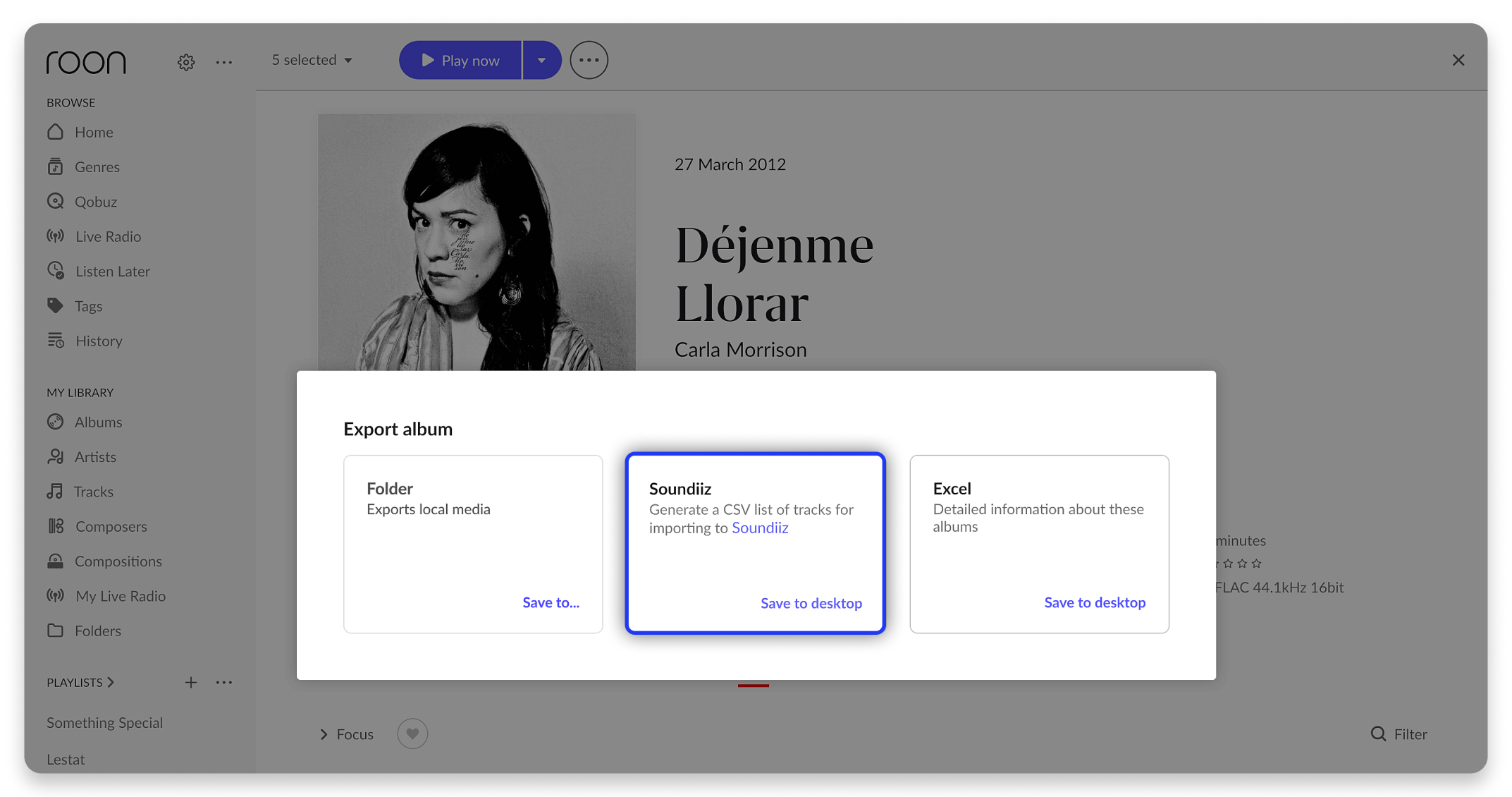
A full tutorial on how to export to Soundiiz can be
found here! Excel Export
Just looking to catalog your library in a spreadsheet? No problem! Get detailed information about your albums by exporting to Excel.
To export your entire playlist or library at once, please select all items first (see How do I select songs or albums? What can I do?), then choose Excel from the export options.
TIDAL and Qobuz tracks aren't stored locally, so Folder Export skips them. Soundiiz and Excel export still include them, since neither requires local files.


