Displays
Any zone in Roon can show Now Playing information and lyrics on a Display. You can use Chromecast devices and most web browsers. With RoonOS 3.0, you can also use a TV connected to your Nucleus One, Nucleus Titan, or ROCK over HDMI. Displays can be tied to Roon Ready devices, Sonos, AirPlay, RAAT, Squeezebox, and more.
Setting Up Displays
Roon lists the Displays it finds on your network under Settings > Displays. Before you can use a Display, please enable it there. An HDMI display on a Nucleus or ROCK is usually enabled automatically.
- In Roon, go to Settings > Displays.
- Find the Display you want to use. Each one shows its type, such as RoonOS or Chromecast.
- Click Enable. The Display's card turns gray and shows a gear icon.
Click the gear icon on an enabled Display to manage it:
- Rename display: give the Display a name that's easy to recognize.
- Disable display: stop using the Display.
- Enable lyrics: turn lyrics on or off for this Display.
Using Chromecast as a Display
To show what you're listening to on a Chromecast device, click the Displays button in the volume popup.

You'll see a list of Displays on your network. Click Display now to start showing Now Playing information.
To use the Display every time you play music in this zone, choose Start on playback from the menu below the Display.
Multiple zones can use a single Chromecast device as a Display, and multiple Chromecast devices can be tied to a single zone.
Using Your Nucleus or ROCK as an HDMI Display
With RoonOS 3.0, Nucleus One, Nucleus Titan, and ROCK installed in UEFI mode can show Now Playing information on a TV.
- Connect your TV to the HDMI port on your Nucleus or ROCK. If your device is already running, Roon picks up the TV within about 5 seconds.
- In Roon, go to Settings > Displays. Your Nucleus or ROCK appears as a RoonOS Display named after your TV, for example "<TV name> on HDMI". If your TV doesn't report a name, it appears as "<device name> Display".
- The first time you connect a TV, the Display is usually enabled automatically and linked to your Nucleus or ROCK's own zones. If it isn't, click Enable.
- To use it with another zone, open that zone's Displays window and choose your Nucleus or ROCK under Display on. To use it every time you play music, choose Start on playback.
You can use the HDMI port for multichannel audio and the Now Playing display at the same time. To do this, connect an AV receiver (AVR) or an HDMI audio extractor between your Nucleus or ROCK and the TV.
While your device starts up, and before Roon Server is running, the TV shows a boot and diagnostics overlay. The overlay includes your device's IP address, serial number, and software versions. For details, please see HDMI display and diagnostics in the Nucleus Manual.
Web Display
Roon can also send Now Playing information to web browsers like Chrome, Safari, and Firefox.
Step 1: Copy the Web Display URL
- In Roon, go to Settings > Displays.
- Under Web display, click Copy link next to the Web display URL.
- Open the link in your web browser.
Step 2: Choose the Browser as a Display
Once the browser is open to your Web display URL, it appears in the Displays window just like a Chromecast device. Open the zone's Displays window from the volume popup, as shown above.

Real-time Lyrics
Roon has lyrics for millions of tracks, with timing data for many that lets us sync lyrics to the track as you listen. When a track in your library has Real-time Lyrics, you'll see a small clock next to the lyrics icon.
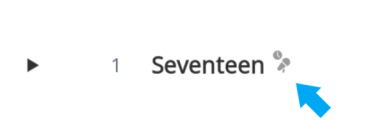
When you play a song with Real-time Lyrics, your Display shows the lyrics on screen, scrolling along with the song.
Compatible Devices
These devices are known to work as Roon Displays.
Chromecast
Chromecast devices, including Chromecast Gen 1, Chromecast Gen 2, Chromecast Ultra, and other devices with Chromecast built-in, work as Roon Displays. You'll find them under Settings > Displays.
Nucleus One, Nucleus Titan, and ROCK
With RoonOS 3.0, the HDMI port on Nucleus One, Nucleus Titan, and ROCK installed in UEFI mode works as a Roon Display. See Using Your Nucleus or ROCK as an HDMI Display above.
Xbox One
To use your Xbox One as a Roon Display, please download this internet browser app, then open your Web display URL in it.
Apple TV
To use your Apple TV as a Roon Display, first open your Web display URL in Safari on an iPhone or iPad. Then use AirPlay to mirror Safari to your Apple TV.
Amazon Fire Devices
You can use an Amazon Fire device as a Web Display by entering your Web display URL in its web browser app.
Incompatible Devices
The PlayStation 4 browser doesn't work as a Roon Display. Some Roon Ready devices have HDMI outputs, but these aren't supported as Displays. The HDMI display is only available on Nucleus One, Nucleus Titan, and ROCK running RoonOS 3.0.
Troubleshooting
- Chromecast: most issues are resolved by restarting your Chromecast device.
- Web Display: try clearing your browser's cache.
- HDMI display: make sure your Nucleus or ROCK is running RoonOS 3.0 and Roon Server is up to date. If you connected the TV while your device was running, please wait about 5 seconds for it to appear. Then check that the Display is enabled in Settings > Displays.
If you're still having problems with a Display, please get in touch with our Technical Support team here.